 MemDesk
The board
The board shows your email as cards in columns. Each column is a Gmail label, and each card is a conversation with that label. When you move a card, its label moves with it. Open the board with the Board button in Gmail's top bar.
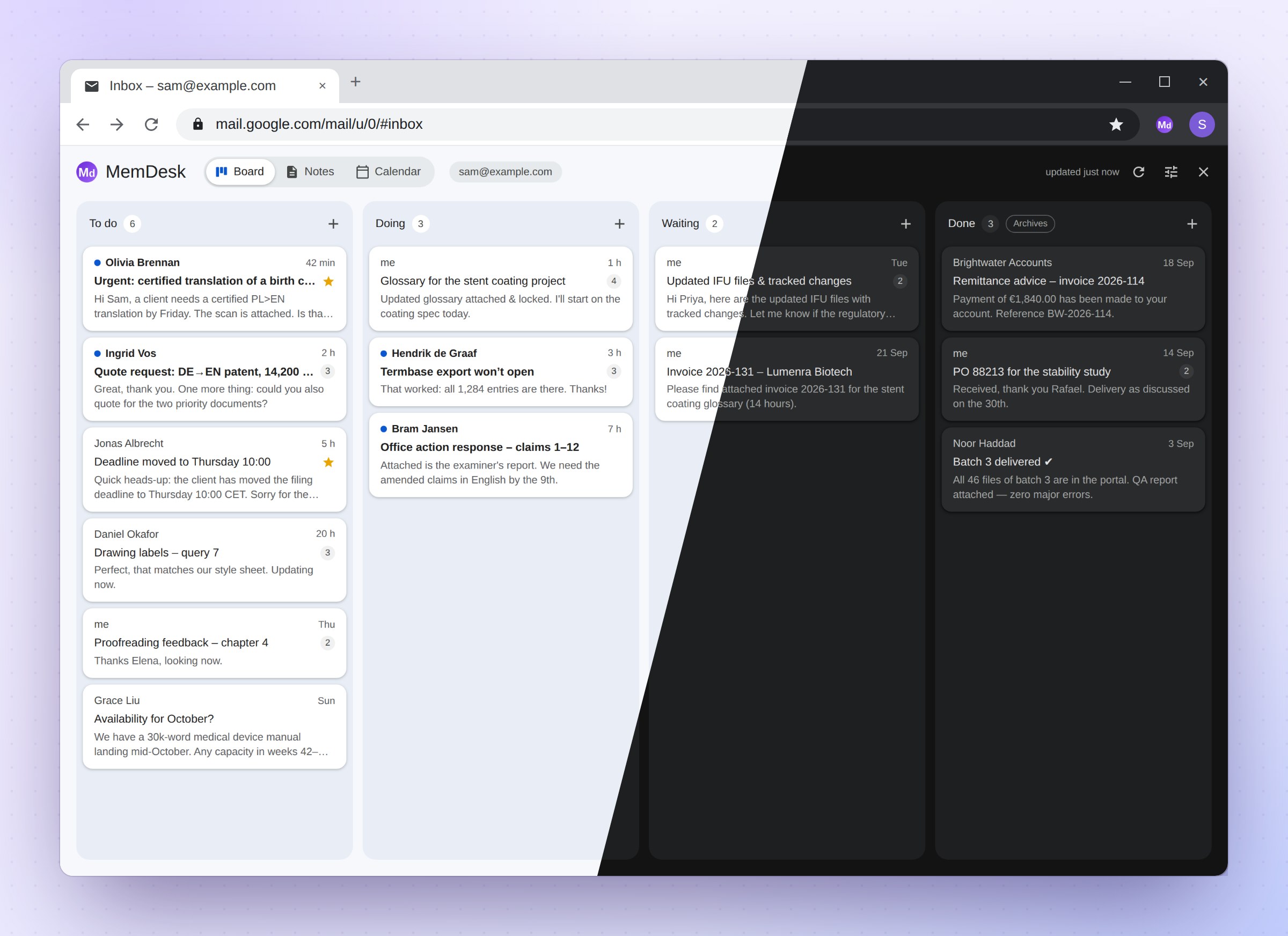
Columns and cards
You start with four columns: To do, Doing, Waiting and Done. In Gmail they are the labels _Board/To do, _Board/Doing and so on, so you see them in Gmail's list of labels, on your phone too.
Each card shows:
- the subject, or your own title for it;
- who sent the latest message ("me" if it was you), and how long ago;
- two lines of the latest message;
- how many messages the conversation has;
- a star if it is starred, and bold text with a dot if it is unread.
Click a card to open the email in Gmail. Ctrl-click or middle-click opens it in a new tab.
Each column shows up to 100 cards, and says so when there are more. The board brings itself up to date when you open it, if what it shows is more than a minute old. The refresh button at the top right does it at once.
Moving cards
Drag a card to another column, or up or down within a column to change the order. A placeholder shows where it will land.
The card menu
Each card has a ⋯ button. Its menu does everything without a mouse:
- Open in Gmail.
- Edit card…: your own title, note and colour (see below).
- Move up and Move down within the column.
- Move to another column.
- Remove from board takes the card off the board. The email itself stays in Gmail, where it was.
Adding emails
The + at the top of a column opens a search box. It understands Gmail's own search words, such as from:anna is:unread. Leave it empty to list your Inbox. Click a result to add it to that column.
Filing the email you are reading
While you read an email in Gmail, a button appears next to Board: Add to board, or On board: Doing if the email is already on the board. Its menu puts the email in a column, moves it to another one, or takes it off the board, without opening the board.
Editing a card
Edit card… in the card's menu gives a card your own title, a note and a colour:
- the title replaces the subject on the board;
- the note replaces the two lines of the email;
- the colour shows as a stripe down the card's left edge.
None of this changes the email. The subject, the labels and what the people you write to see stay exactly as they were. Hover over a renamed card to see the email's real subject.
To put a card back as it was, choose Use the email subject, empty the note and choose No colour. In the editor, Enter saves from the title, Ctrl+Enter saves from the note, and Esc cancels.
Colours from your Gmail labels
Give a label a colour in Gmail: click the three dots beside it, then Label colour. Every card whose conversation has that label then shows the label's name as a small tag in that colour, with a stripe to match. A Gmail filter that labels mail (everything from one client, say) colours their cards too.
The board's own _Board labels and the notes' labels never count. If a card has several coloured labels, the first two by name show, and the first gives the stripe. A colour you set with Edit card… wins over them.
Waiting on them
When the latest message in a conversation is yours, the ball is in the other person's court. The card then says Waiting on them. It does not say so if your message was only to yourself, or while you have a reply in draft, and it never shows in Waiting or Done.
Click Waiting on them to move the card to the top of Waiting (or of whichever column has "wait" in its name). Nothing moves by itself.
Done
Moving a card to Done also archives the email: it leaves your Inbox, but keeps its label, so you can still find it.
Not if the conversation has mail you haven't read yet, though: a reply may have come after the board last loaded. Then the card moves to Done, the email stays in your Inbox, and a message says so, with an Archive anyway button for when archiving it is what you meant.
Done also plays a short, soft chime of two notes when a card lands there: whether you drag it, use the card menu, add it from a search or use the button in Gmail's top bar. Changing the order of the cards within Done is quiet.
You can switch archiving and the chime on or off for any column, in the column settings.
Column settings
The column settings button at the top right of the board opens the Columns panel. There you can:
- add a column with + Add column. Its label is made in Gmail when you save;
- change a column's title, and its Gmail label. Changing the label here renames it in Gmail itself, so the mail filed under it stays put. The label is always one of the board's own, under
_Board: moving a card takes the board's labels on and off, so a label of yours (a client's, say) is never one a move could take off an email; - change the order with the arrows: up is further left on the board;
- remove a column with its ✕. That only takes it off the board: the Gmail label, and the mail in it, are left untouched;
- tick Archive threads moved here to make a column archive, as Done does;
- tick Play a short chime when a card is moved here. Ticking it plays the chime, so you hear what it sounds like.
Click Save when you are done. If you rename a board label in Gmail itself, the board follows it, rather than making a new, empty one.
The same columns everywhere
Your columns are the same on every computer and in the phone app: their titles, their order, and which ones archive and chime. They are kept in Gmail, as one message called Board layout under _Board. Saving the columns replaces it, and the old one goes to Trash. Please leave it where it is: it is how your other computers and phones know your columns.
A change made on one shows on the others the next time their board refreshes. If Gmail cannot be reached, each one uses the copy it keeps.
Your card edits (titles, notes and colours) follow your Chrome profile to your other computers; the phone app keeps its own. The order of the cards within each column is kept on each computer.