 MemDesk
Notes
Your notes live in Gmail, as messages in your own mailbox under the label _Notes. They are never sent, and never show in your Inbox. Open them with the Notes button in Gmail's top bar, or the Notes tab at the top of MemDesk.
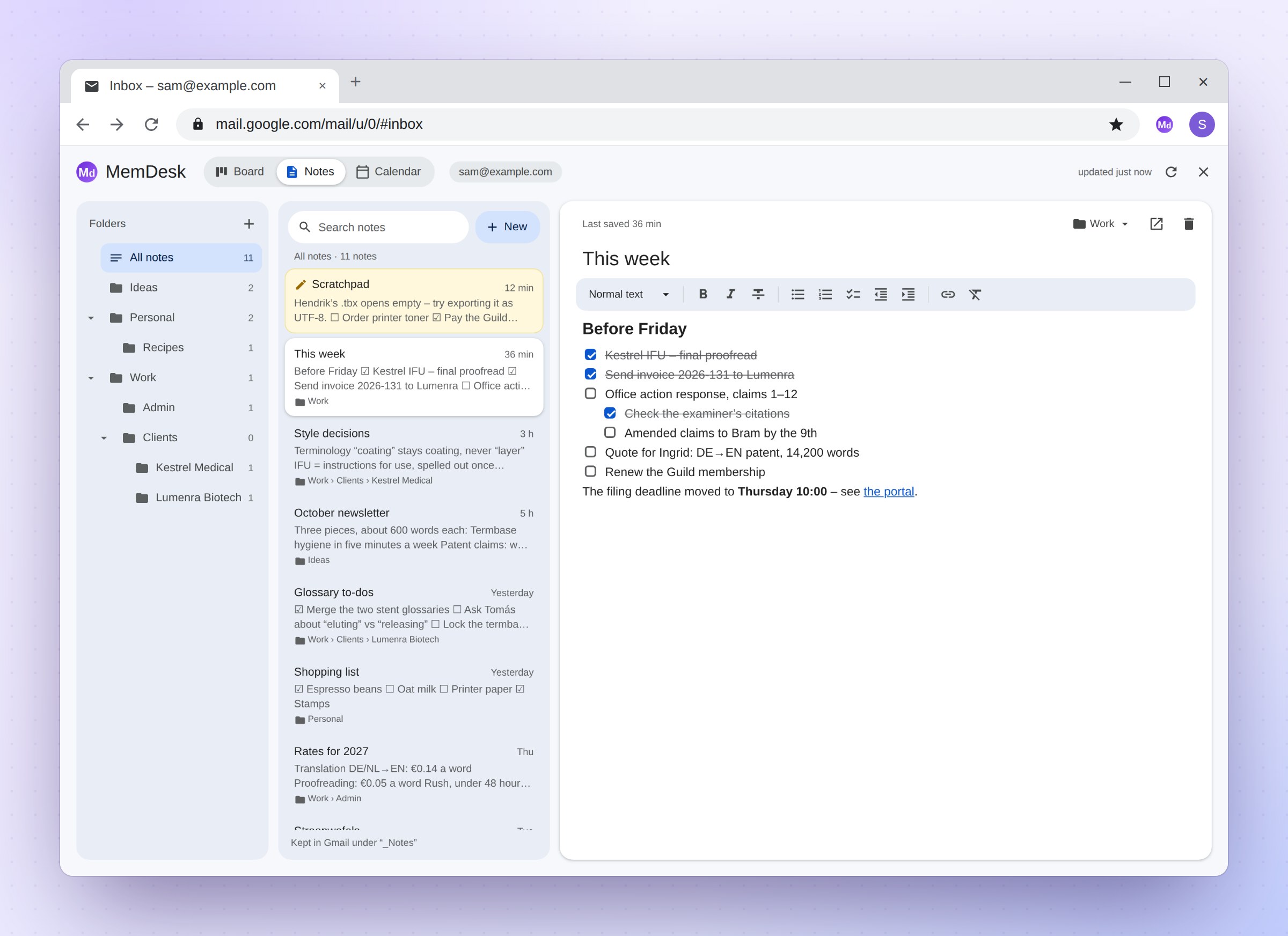
The folders are on the left, the list of notes in the middle (newest first), and the open note on the right.
The Scratchpad
The Scratchpad is one note that is always at hand. The notes open on it, with the cursor in it, so you can start typing at once. It is pinned at the top of the list, and open whenever no other note is.
It is the same note on every computer and phone, so a line typed on the phone is waiting in Chrome. It has no folder and cannot be renamed or deleted: to clear it, delete its text. It is also in the calendar's week, when you show the week in two rows.

Writing and saving
Click New to start a note. It starts in the folder you are looking at. A note has a title and the text; Enter in the title moves to the text. A note with no title is filed under its first line.
A note saves itself a couple of seconds after you stop typing, and again when you switch notes or tabs or close MemDesk. Ctrl+S saves at once. The line above the title says "Unsaved changes", "Saving…" or "Saved". If you close the Gmail tab with a change not yet saved, Chrome asks before leaving.
If the same note is changed on another computer or phone while you edit it, nothing is lost: the newer version comes in with your changes on top, and a paragraph changed on both sides is kept in both versions.
Formatting
The toolbar above the text has a text style menu (normal text and three sizes of heading), bold, italic, strike-through, bulleted, numbered and check lists, less and more indent, a table, a picture, a link, and clear formatting.
Keyboard shortcuts:
- Ctrl+B bold, Ctrl+I italic, Ctrl+K a link.
- Ctrl+Shift+7, 8 and 9: a numbered, bulleted or check list.
- Tab and Shift+Tab indent a list item, up to three levels.
- Ctrl+Enter ticks a check box. So does clicking it.
Or type at the start of a line, then a space: - for a bulleted list, 1. for a numbered one, [] or [x] for a check list, and #, ## or ### for a heading. Enter on an empty list item ends the list. Backspace at the start of a list item or heading turns it back into plain text. Ctrl-click a link to open it.
Contents
For a long note with headings, the Contents button at the right end of the toolbar lists the headings beside the text, indented by level. Click one to go to it; the cursor goes there too. As you scroll, the heading of the part you are reading is marked. The list follows as you add, change or remove headings.
Click Contents again to hide it. MemDesk remembers whether it is shown on this computer. It needs room beside the text, so a narrow window or a phone does not offer it.
Tables
The table button puts a table where the cursor is: three columns, a heading row and two more rows. Tab moves to the next cell (in the last cell it adds a row), and Shift+Tab goes back. Enter starts a new line inside a cell.
While the cursor is in a table, the table bar under the toolbar adds and deletes rows and columns, turns the heading row on or off, aligns a column, and sorts the rows by a column. To remove the whole table, click Delete table at the right of the table bar, or choose Delete table in its Row or Column menu. Ctrl+Z straight after any of these takes it back.
A wide table scrolls sideways, which is how it fits on a phone.
Pictures
To put a picture in a note, click the picture button on the toolbar and choose one (on a phone, from your photos or the camera), paste one - a screenshot, say, or a picture copied with "Copy image" - or drag one onto the note. It goes in on a line of its own, below the line the cursor is on. A big picture is made smaller first, to about the size of a screen, so a photo straight from a phone takes up a few hundred KB rather than several MB.
Click a picture to select it. Then:
- Drag the handle on its bottom-right corner to make it bigger or smaller.
- The buttons on it set it to 25%, 50%, 75% or 100% of the note's width.
- The bin button, Delete or Backspace deletes it.
- Esc, or a click in the text, lets it go.
Ctrl+Z straight after any of these takes it back. A picture's size is a share of the note's width, so it looks the same on a phone. From the keyboard, the arrow keys on the line above or below a picture select it.
Each picture is kept in Gmail as an email of its own, which the note points to, so saving a note never sends its pictures again. Gmail itself shows a note's pictures as a line saying "[Picture: open the note to see it]"; open the note in MemDesk to see them. A picture you take out of a note goes to Gmail's Trash once the note is saved, and so do a note's pictures when you delete it.
Pasting
A paste keeps the formatting a note can hold. From Word, Google Docs, a web page or an email, headings, bold, italic, strike-through, links and lists come across; fonts, colours, sizes and a page's images do not. A picture copied on its own does: see Pictures. Tables from Excel, Google Sheets, Word or a web page arrive as tables. Cells copied from a spreadsheet and pasted into a table fill it from that cell on.
Text written in Markdown, such as an answer copied from a chat assistant, becomes formatting too: bold, italics, headings, lists, links and tables.
- Ctrl+Shift+V pastes the text alone, exactly as copied.
- Ctrl+Z straight after a paste takes it back.
More room for the note
The folders and the list of notes can each fold away to a slim strip, to give the note more room. Click the « button at the top of either column. The folders' strip says Folders; the list's says which folder you are in and how many notes it has, and has buttons for a new note and for searching. Click a strip to bring its column back.
Whatever you fold stays folded on this computer until you open it again. On a phone, which shows one thing at a time anyway, there is nothing to fold.
Folders
On the left are All notes, then your folders as a tree, each with how many notes it holds. Click a folder to see only its notes, and to search only inside it.
- The + at the top makes a folder.
- A folder's ⋯ menu renames it (its subfolders come along), makes a subfolder, or deletes it. Only an empty folder can be deleted.
- To move a note, drag it onto a folder (onto All notes to take it out of its folder), or use the folder button above the note.
- The small arrow beside a folder folds its subfolders away. Handy once the tree grows long.
Each folder is a Gmail label under _Notes, such as _Notes/Work/Clients, so the same tree shows in Gmail's list of labels.
Searching
Type in the search box above the list. Gmail does the finding, so it finds words anywhere in a note, and Gmail's search words work too, such as before:2026/09/01.
Each result shows short bits of the note around the words you searched for, with the words highlighted, and how many matches it has. Capitals and accents do not matter ("cafe" finds "Café"), a word also finds longer words it starts ("gloss" finds "glossary"), and "words in quotes" are found as a phrase.
Open a result, and every match in the note is highlighted. A bar above the title says "2 of 5": its arrows, F3 and Shift+F3 step from one match to the next. The ✕ on that bar clears the search.

Deleting, and old versions
The bin button above a note moves it to Gmail's Trash, with an Undo. Its pictures go to Trash with it, and come back with the Undo. The button beside it opens the note in Gmail, as Gmail keeps it.
Each time a note is saved, its previous version goes to Gmail's Trash, where Gmail keeps it for 30 days. So Gmail's Trash is a history of your notes: to get old text back, open an old version there and copy it.
Emails among your notes
Anything else filed under _Notes shows in the list too: an email you sent yourself from your phone, say. It is marked "From an email". If you edit it, MemDesk saves a new note in its place and takes the _Notes label off the email, which stays in Gmail. Deleting it does the same.